
View audience information
View all defined audiences from the All Audiences view, or drill into a specific audience for size, snapshots, exports and bulk offers.
View information about all audiences or a specific audience.
View information about all audiences
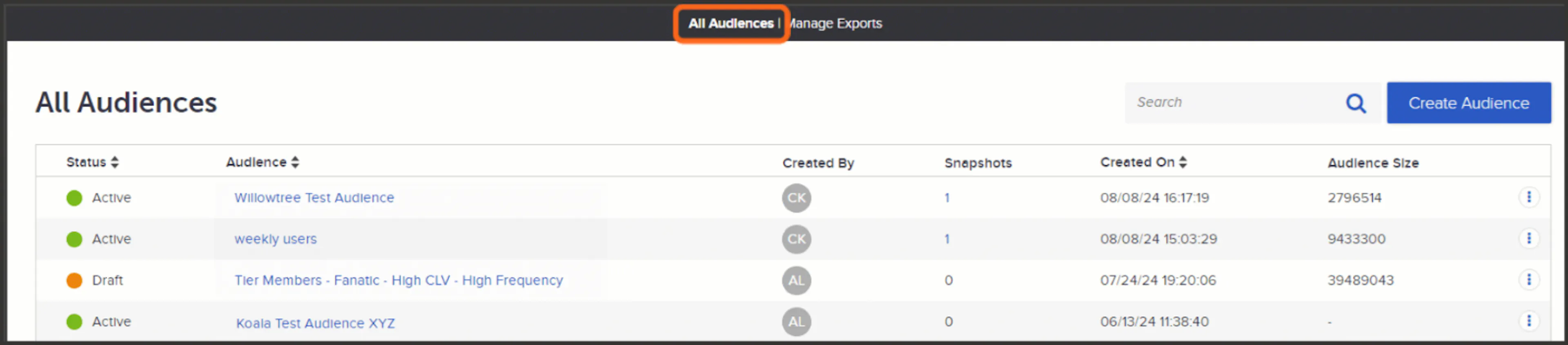
Use the All Audiences view on the main Audiences dashboard to view all defined audiences. The table provides details on:
-
Status: Displays whether the audience is live (active) or in draft mode.
-
Audience: Name of the audience. If the audience is active, clicking this takes you to the details page of the audience. If the audience is in a draft state, clicking this takes you to the audience builder page where you can make edits and/or activate the audience.
-
Created by: Who created the audience. Hovering over the user's initials displays their full name.
-
Snapshots: How many static snapshots have been taken of the audience. Pro tip: Click the number displaying in this column to view a summary of the snapshots and a More Details link, which brings you directly to the Static Snapshots tab of that audience.
-
Created On: Date and time that the audience was created. Note that this is not when the audience was activated, just when the audience was first created as a draft.
-
Audience Size: Estimated audience size. The number displaying here is based on a quick query of the platform; it is not necessarily the exact number of users currently in the audience. Note that if the audience is dynamic, the audience size will likely change over time.
View information about a specific audience
Use the following procedures to view information about a specific audience.