

Create role
Create a role for the SessionM platform, define its rules from resources and allowable actions, then assign the role to groups.
Create a role for the SessionM platform. A role contains a set of rules, and each rule specifies two things:
- A resource, which represents a domain in the platform, such as Campaigns or Customers or the SessionM ETL tool, SM Sync.
- The allowable actions that correspond with the resource, such "get," "list" and "create."
Roles can then be assigned to groups.
Steps
-
On the Admin & Rights 2.0 dashboard, under Management, click Roles.
-
From the All Roles page, click Create Role.
-
In the New Role modal, specify a name and a display name for the role. Then click Save. The new role displays.
-
Click Add Rule to expand the Resource and Actions fields.
-
From the Resource drop-down, select the resource you want for the role, as shown below:
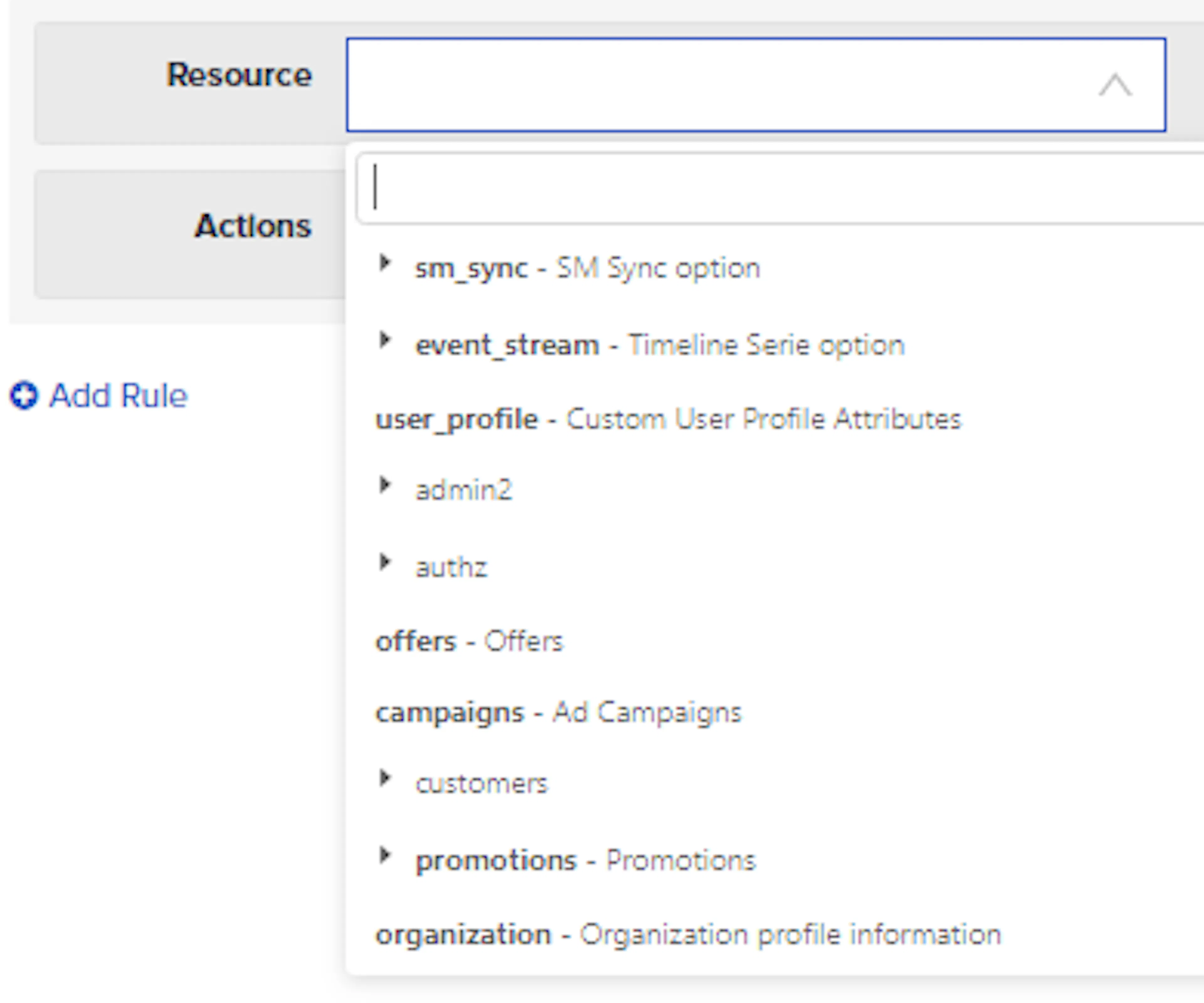
Resource drop-down showing the platform resources available for a role -
Then, click in the Actions field to display the actions you can assign to the active resource, as shown below:
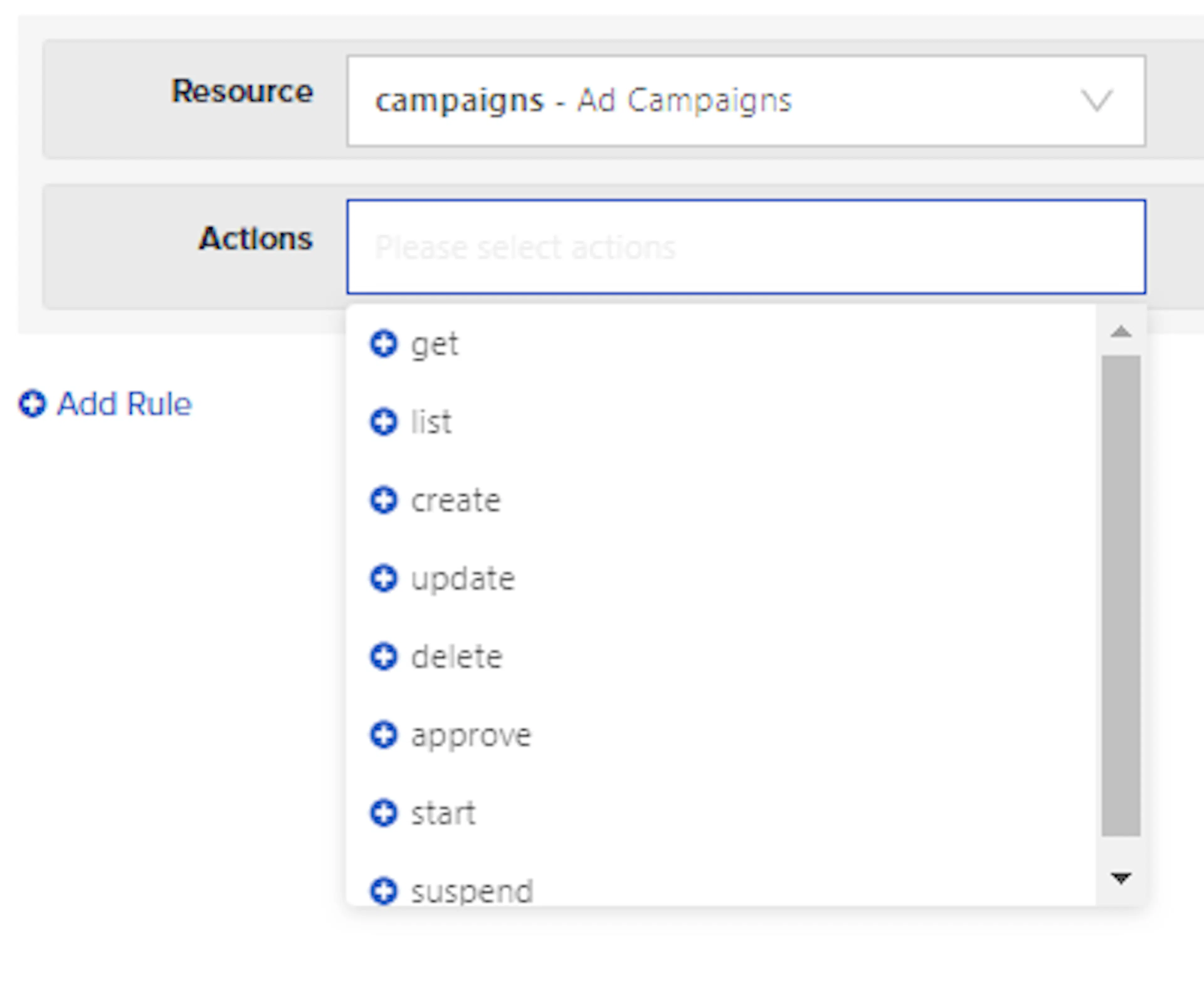
Actions field showing the actions assignable to the active resource For example, you might need "get," "list," "create," "update," and "delete" actions for defining a resource for stipulating members of groups; or the same set of actions mentioned above plus "approve," "start," and "suspend" for defining a resource for building and operating campaigns.
-
If you want to add more rules for the role, repeat steps 4 - 6.
-
Click Save.
Once saved, the role is created and becomes available for assignment to groups.